Remix Project
Preview
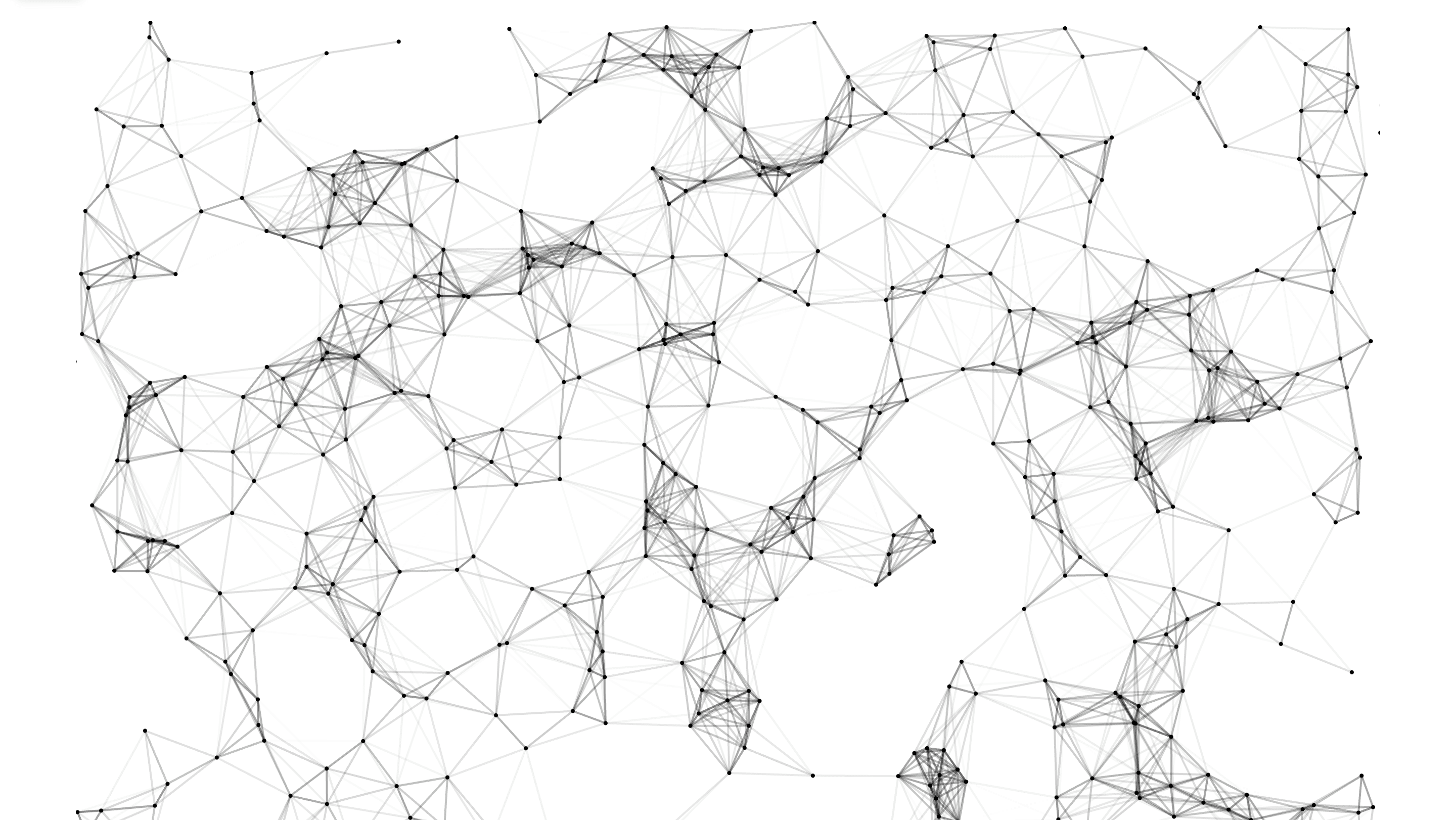

Learn how to use the new Framer Particles Component to create smooth, customizable animations in your Framer projects.
About the Component
The Framer Particles Component lets you build stunning particle animations that react to motion, interaction, and design.
Framer’s original Particles Component was recently deprecated, so this version was rebuilt from scratch using the latest particles library. It offers more flexibility, better performance, and full customization.
How to Add the Particles Component to Your Framer Project
Remix the Project
Click the remix button to duplicate the Particles project into your Framer account.Find the Component
Open the
Componentsfolder and locate the Particles component.Copy to Your Project
Copy the component into your own project and place it on the canvas where you want to use it.
How to Use the Particles Component
The Particles Component includes multiple settings for full creative control. Below are the most important configuration options.
Fill and Color
Fill: Defines the base color of all particles.
Color: The color settings let you customize how particles are colored. You can use a single color (the first one) or multiple colors (the second one) for variety and depth.
Amount, Size, and Opacity
Amount: Controls how many particles appear on the screen.
Tip: Start low and increase gradually to find the right balance for your design.
Size: Set a fixed size or define a range with minimum and maximum values.
Opacity: Similar to size, you can use a single value or a range.
Links
Links enable to connect particles with lines. You can adjust:
Color and Opacity of the connecting lines
Distance (how far particles can connect)
Width of each link
Interaction Modes
The component supports multiple modes to control how particles behave and react.
Connect Mode
connectDistance: Maximum distance between particles to form connections
connectRadius: The radius around each particle where connections can form
connectLinksOpacity: Opacity of the connecting lines
Grab Mode
grabDistance: How far the cursor can grab particles
grabLinksOpacity: The opacity of the lines between cursor and grabbed particles
Bubble Mode
bubbleDistance: How close the cursor needs to be to create bubbles
bubbleSize: Maximum growth size for particles
bubbleDuration: Duration of the bubble effect
Repulse Mode
repulseDistance: Distance particles move away from the cursor
repulseDuration: Duration of the repulsion
Push and Remove Modes
pushQuantity: Number of particles added on click
removeQuantity: Number of particles removed on click
Trail Mode
trailQuantity: Number of trail particles
trailDelay: Delay between trail particle creation
Move
Control how particles move around your design. First, enable movement to access these options:
Direction: Choose None, Basic (Top, Bottom, Left, Right), Diagonal (Top Left, Top Right, Bottom Left, Bottom Right), or Special (Inside, Outside).
Speed: Adjust how fast particles move.
Random: Make particles move at different speeds.
Straight, Vibrate: Add straight or shaking movement styles.
Out Mode Options:
Out: Particles wrap around to the opposite side
Destroy: Particles disappear when leaving
Bounce: Particles bounce off edges
None: Particles stop at edges
Split: Particles split when hitting edges
Special Effects:
Gravity:
Enable gravity effects
Acceleration: How fast particles fall
Max Speed: Top falling speed
Trail:
Enable trailing effects
Amount: Number of trail particles
Spin:
Enable spinning motion
Acceleration: Spin speed
Attract:
Enable attraction between particles
Distance: How far attraction works
Shape
Choose how particles look by selecting a shape:
Basic shapes: Circle, Square, Triangle, Polygon, Star
Character: Use letters or symbols as particle shapes
Image: Upload custom images and define size
Click Interactions
Enable particles to respond when users click. Start by enabling clicking to use these effects:
Attract: Pull particles toward the click
Bubble: Expand particles near the click
Push: Add new particles where you click
Remove: Delete clicked particles
Repulse: Push particles away from clicks
Pause: Stop particle movement on click
Trail: Leave a trail following the click
Hover Interactions
Particles can also respond to hover. Enable hovering to access these effects:
Bubble: Particles grow larger under the mouse
Repulse: Particles move away from the mouse
Trail: Create particles behind mouse movement
Attract: Pull particles toward the mouse
Bounce: Particles bounce off the mouse
Connect: Draw lines to nearby particles
Slow: Particles move slower near the mouse
Rotation
Basic Settings
Value: Set rotation angle
Direction: Choose how particles turn right, left, or random
Animation
Speed: How fast particles spin
Sync: Make all particles spin together
Radius
This setting controls the border radius of the particles component.
The Result
Once configured, the new Particles Component gives you endless creative options from subtle motion backgrounds to dynamic, interactive effects. It offers smooth performance, visual depth, and full design flexibility right inside Framer.
Don't forget to share this post!