How to Track UTM Parameters in Framer Forms
Learn How to Capture and Track UTM Parameters in Framer Forms Using Custom Code Overrides
 Clément Lionne
The UTM Parameters in Framer Forms tutorial explains how to capture campaign tracking data from URLs and include it in your form submissions. This is useful for anyone running ads or campaigns who wants to know where each form submission is coming from.
Why Use It
Currently, you can’t track UTM parameters natively with the Framer forms. You can follow this feature request to stay updated on when it will be supported.
With a simple code override, you can automatically capture UTM data such as source, medium, and campaign, and pass them through the form submission. This makes it easier to measure the performance of your marketing campaigns and understand which channels drive conversions.
How the Code Override Works
The custom code override automatically reads all URL parameters and adds them as hidden input fields inside your form. When a visitor submits the form, these values are sent along with the rest of the form data.
There are two available functions:
- withUTMParams — captures only parameters that begin with
utm, such asutm_source,utm_medium, andutm_campaign. - withAllParams — captures every parameter from the URL, not just the ones that start with
utm.
Step 1: Copy the Code Override to Your Project
Open the remix link associated with this tutorial to access the custom code override.
In your Framer project:
- Create a new custom code override file named Form.
- Copy the code from the remixed project into your Form.tsx file, as shown below.
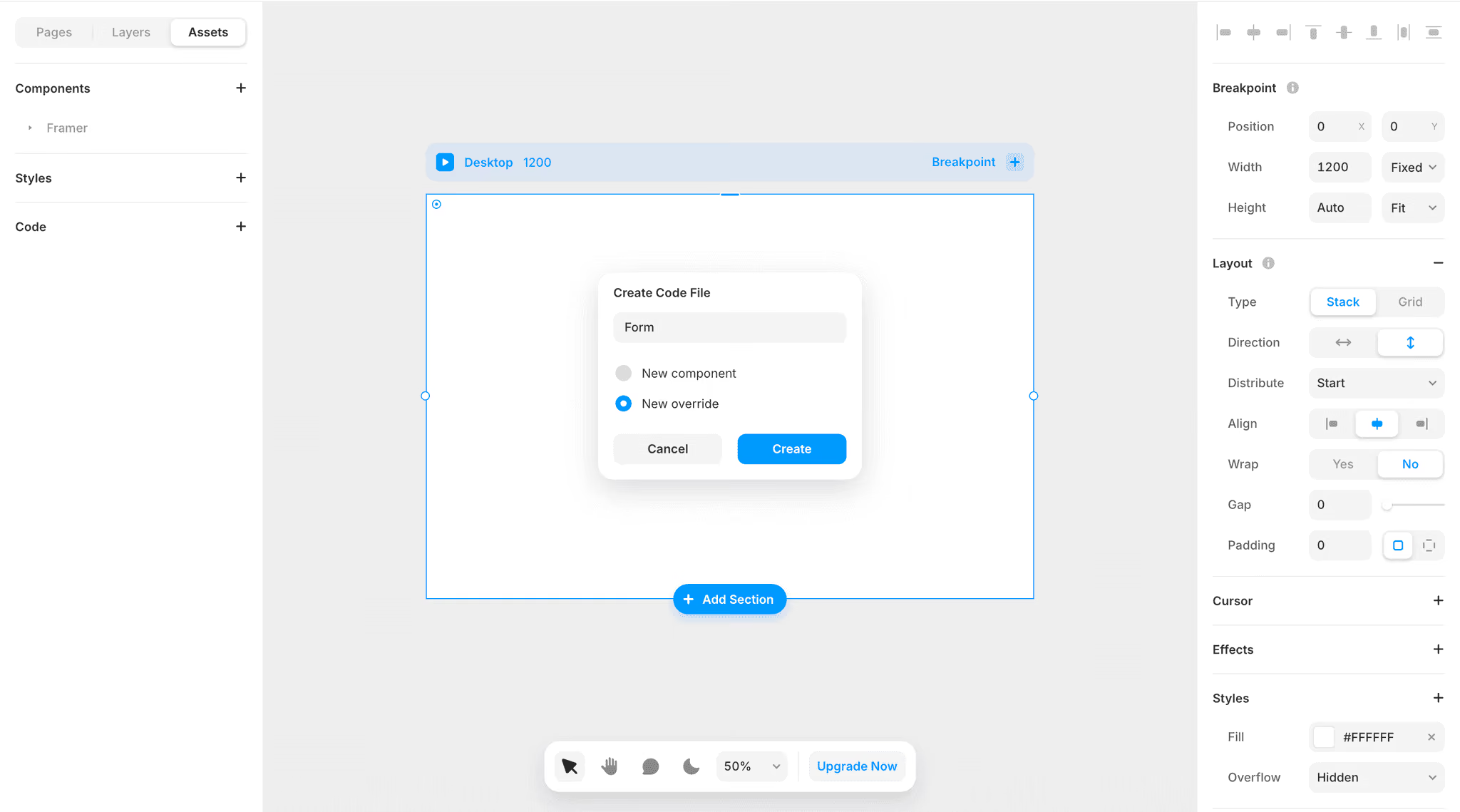
You should now see the two functions inside the file: withAllParams and withUTMParams.
Step 2: Apply the Code Override
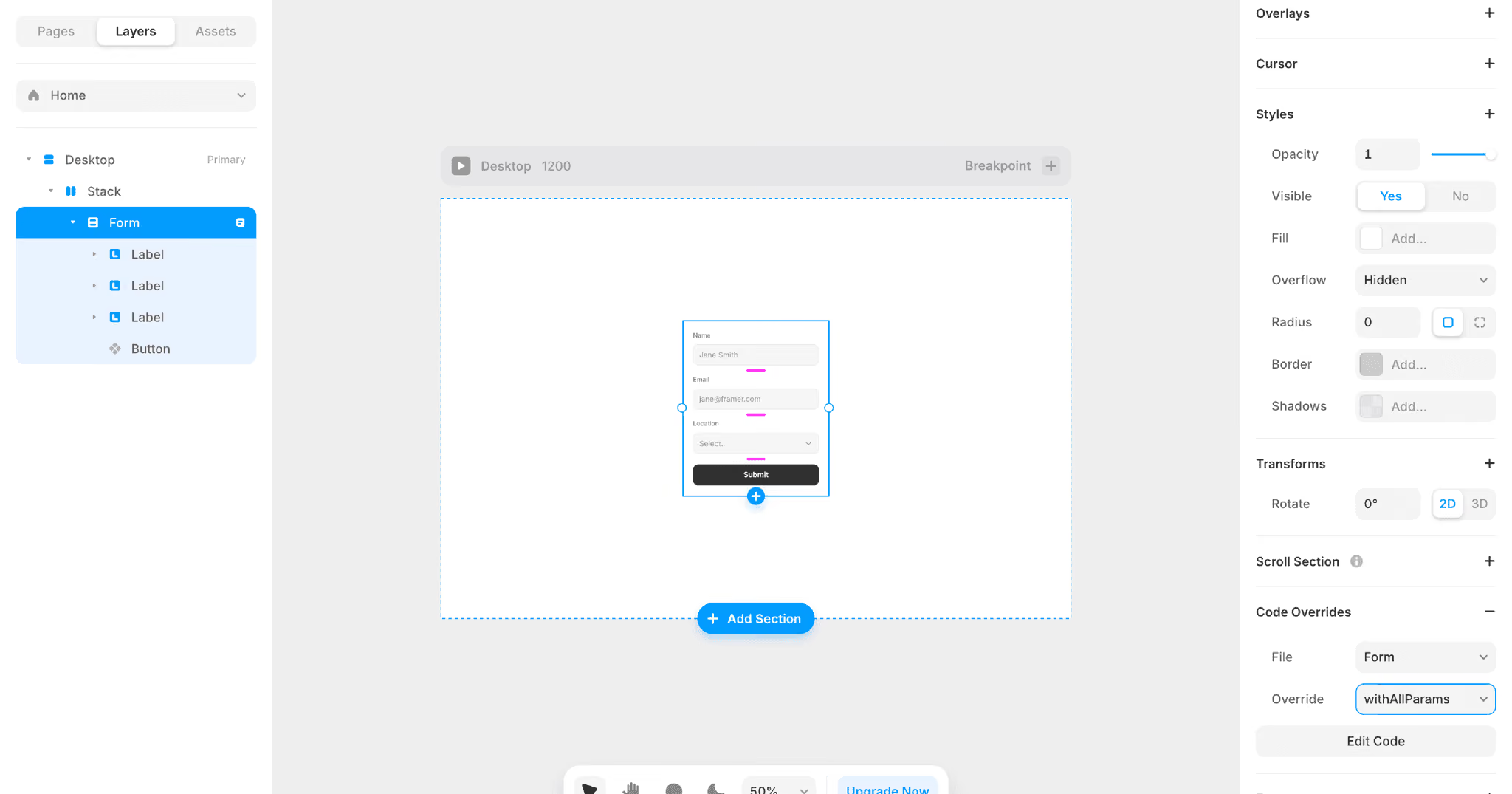
- Select your form element in Framer. Be careful to select the actual form, not a label or input field.
- Add the code override you just created.
- Choose which function to use:
withAllParamsorwithUTMParams, depending on your needs.
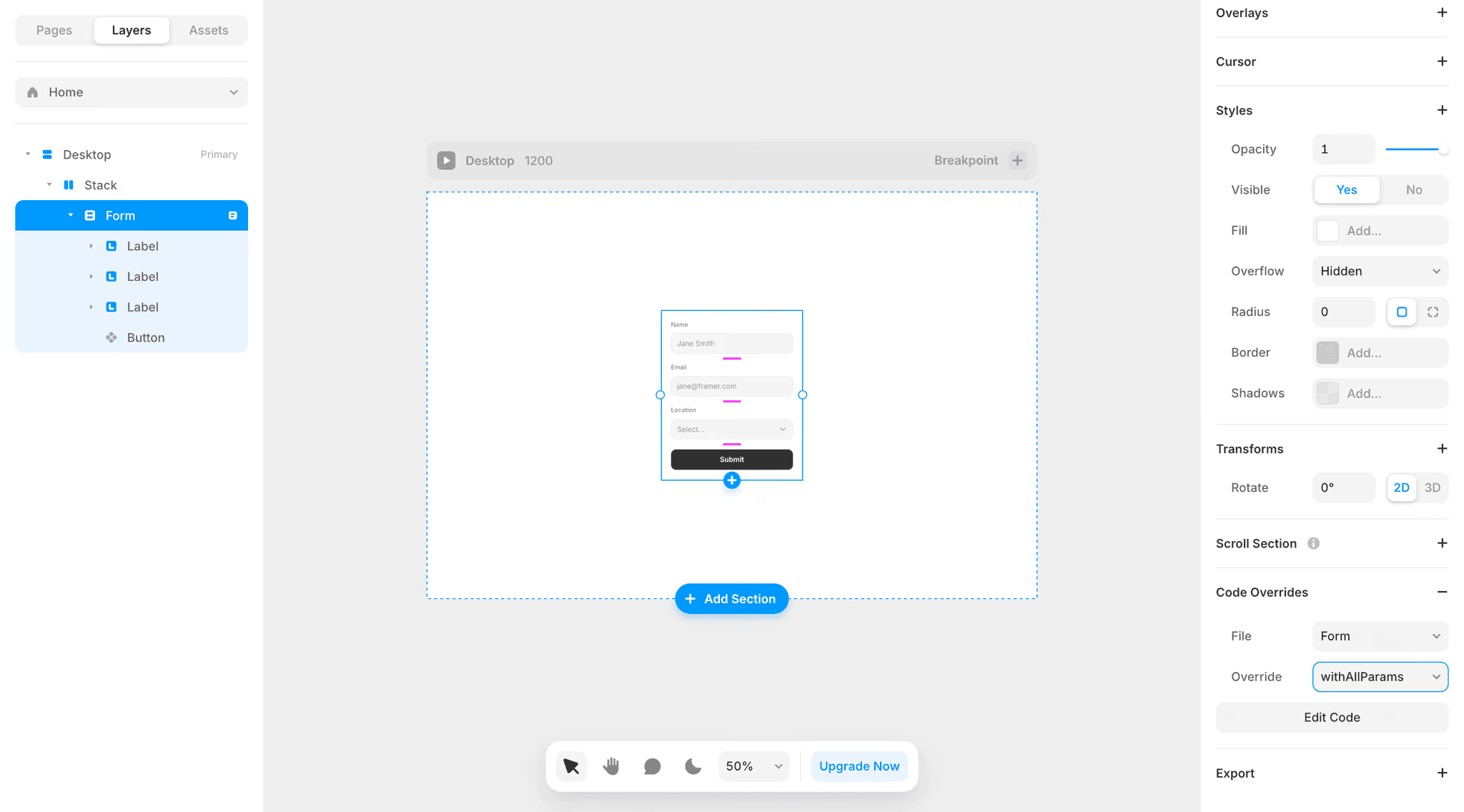
And voilá! Your form will now automatically capture and submit any UTM parameters present in the page URL.
The Result
Your forms now include campaign tracking data without needing any manual setup. When someone fills out a form after coming from an ad or a specific campaign link, the UTM values are stored in the submission data. This gives you full visibility into which traffic sources and campaigns are performing best.
If you run into any issues or want to customize how parameters are stored, feel free to reach out.