Remix Project
Preview
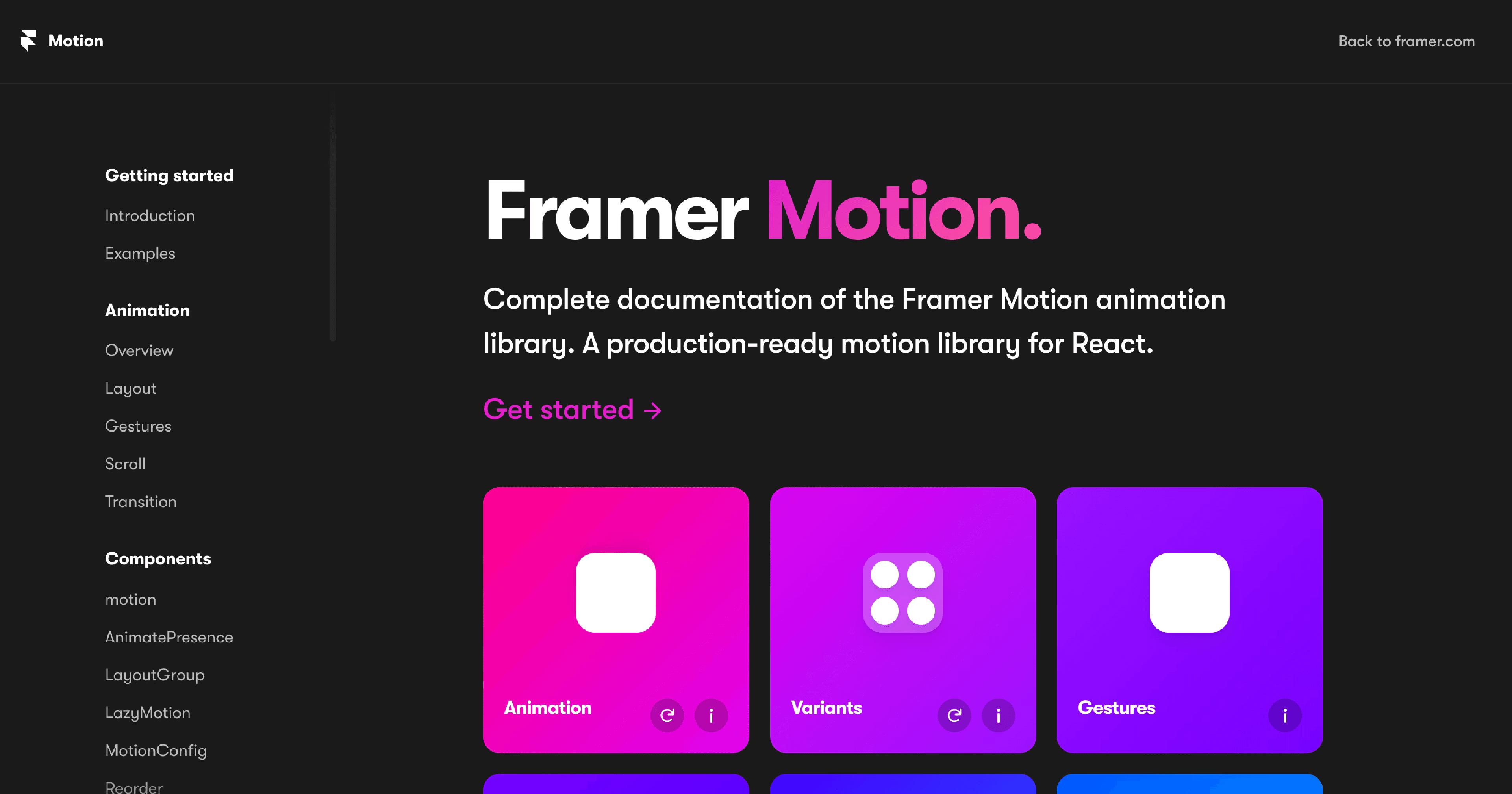

The Table of Contents is a simple but powerful way to improve navigation and readability inside long CMS pages. This guide will show you how to build a custom table of contents in Framer that automatically links to the right headings and scrolls smoothly through your content.
Why Use a Table of Contents
A table of contents helps users jump between sections quickly, especially on blog posts, documentation pages, or case studies with multiple headings. It also improves the structure of your page, keeps visitors engaged, and makes your CMS collections easier to browse and scan.
Step 1: Prepare Your Content
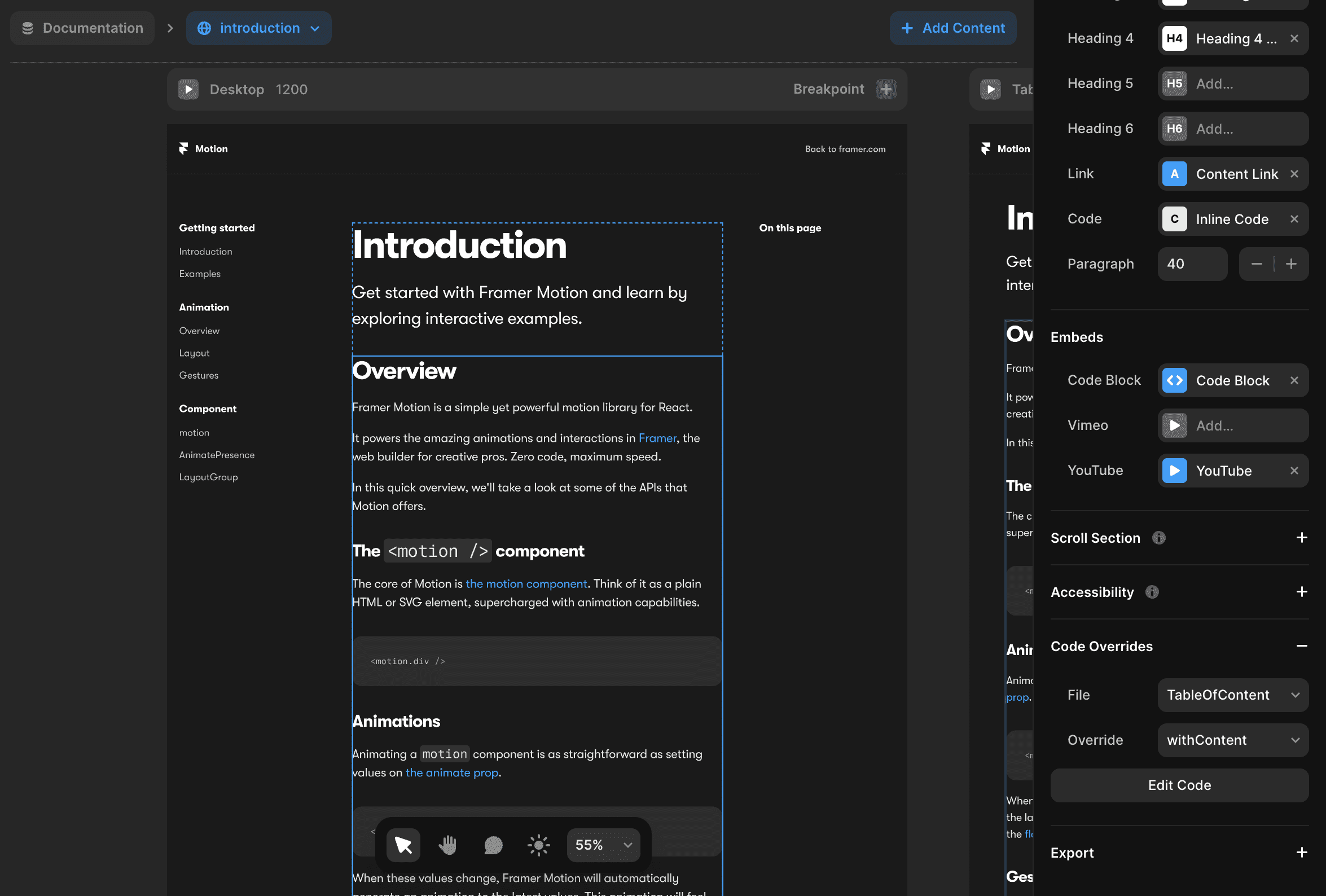
In the Framer canvas, select the content you want to include in your table of contents.
Add the code override file named
TableOfContentand the override function calledwithContent.
This will connect the component to your CMS data and allow it to read the structure of your headings automatically.
Step 2: Create the Component with Variants
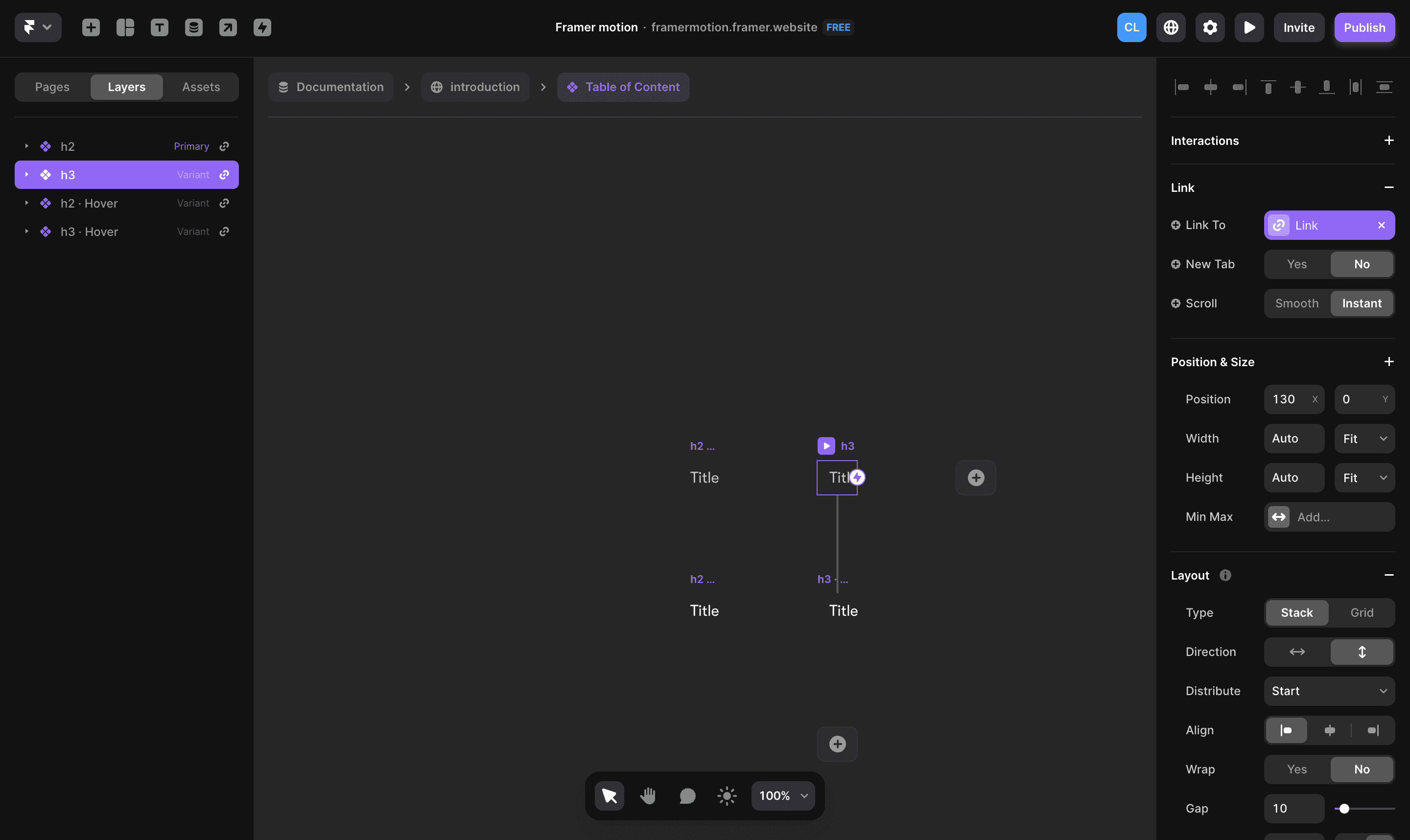
Next, create a component with six variants named h1, h2, h3, h4, h5, and h6. Make sure the names are written in lowercase, for example, h1, h2, and so on.
Inside the component, create:
A Link variable for the heading link.
A Title variable for the text content that will appear in the list.
To activate the component, select it in your project and add the TableOfContent code override with the withTableOfContent function. This step connects your design with the logic that builds the actual table of contents.
Step 3: Adjust Which Headings Are Displayed
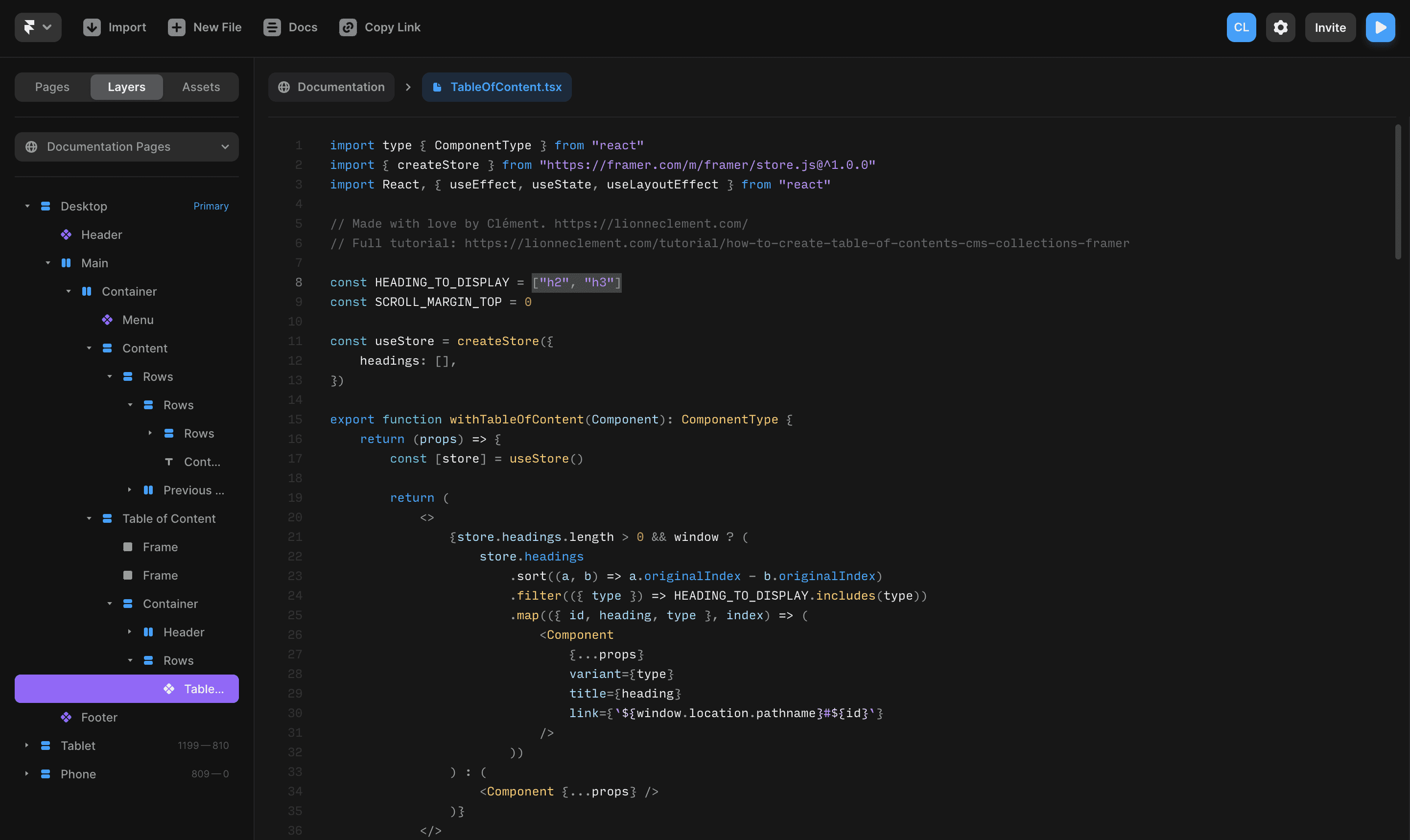
In my case, I only want to display the headings h1 and h2, so I will set the HEADING_TO_DISPLAY variable as const HEADING_TO_DISPLAY = ["h1", "h2"];.
Step 4: Edit the Scroll Margin
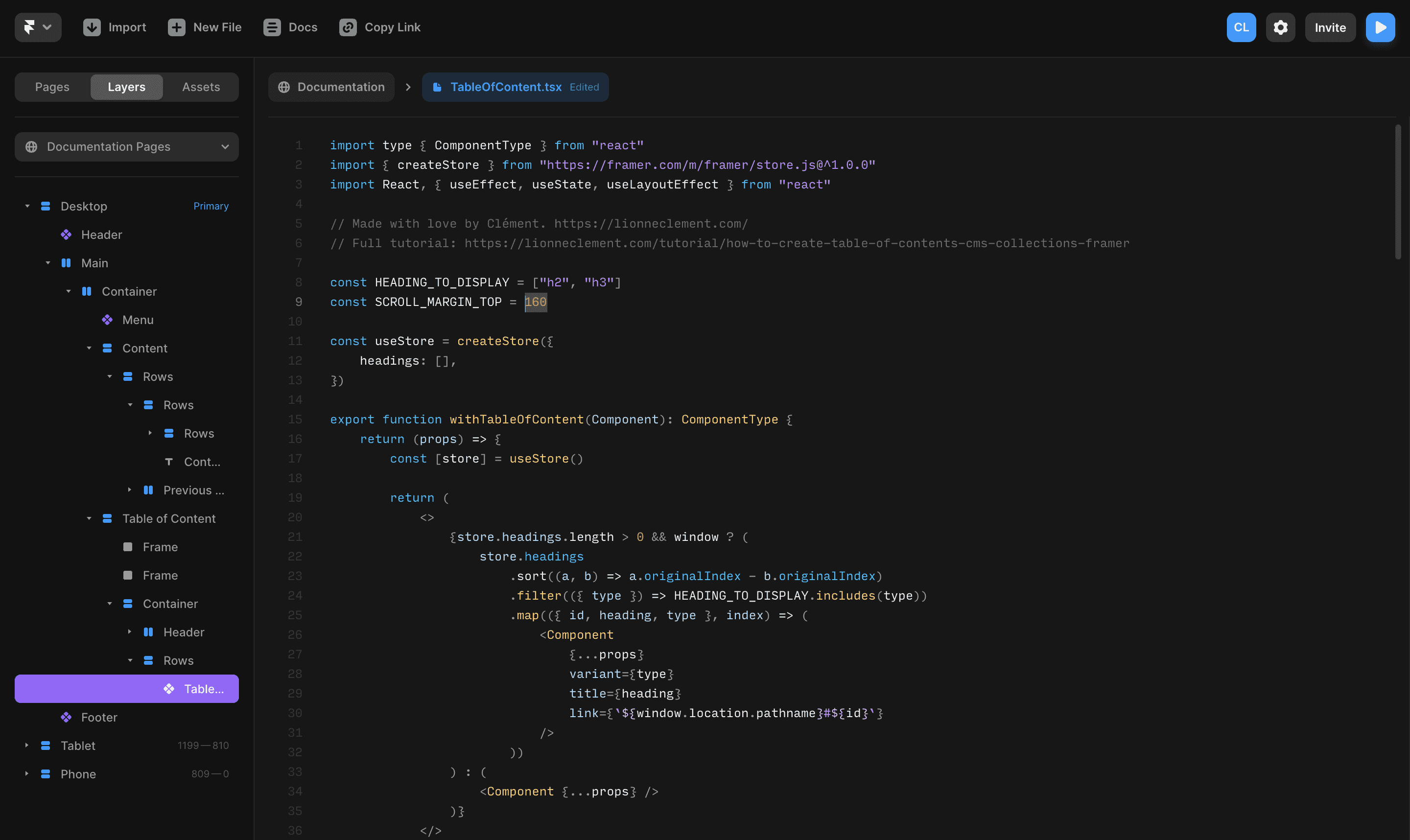
If you want to control the distance between the top of the screen and the scroll target when a link is clicked, you will need to modify the SCROLL_MARGIN_TOP variable. By default, it's set to const SCROLL_MARGIN_TOP = 160.
This ensures your headings do not sit too close to the top of the viewport after scrolling.
The Result
You now have a fully functional, custom table of contents for your CMS pages in Framer.
Users can jump between sections smoothly, your content is easier to explore, and your site feels more structured and professional.
If you have any questions or run into issues while setting this up, feel free to reach out.
Don't forget to share this post!