Remix Project
Preview
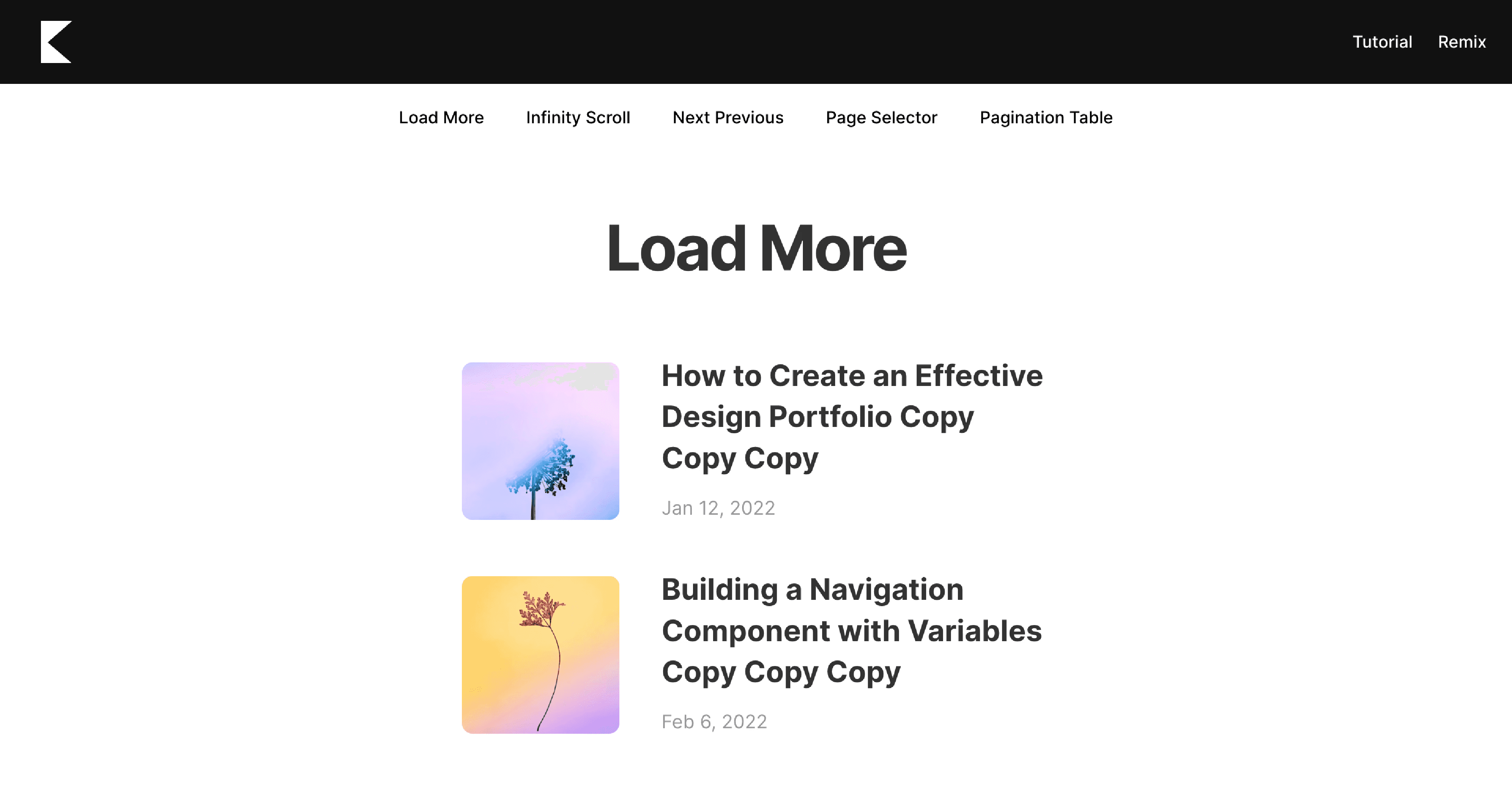

Learn how to add pagination to your CMS collections in Framer, including Load More, Infinite Scroll, Next and Previous, Page Selector, and Pagination Table options.
Note: CMS Pagination is now supported natively in Framer. This guide shows how to use custom overrides for more advanced or flexible pagination setups.
Setting Up the Collection List
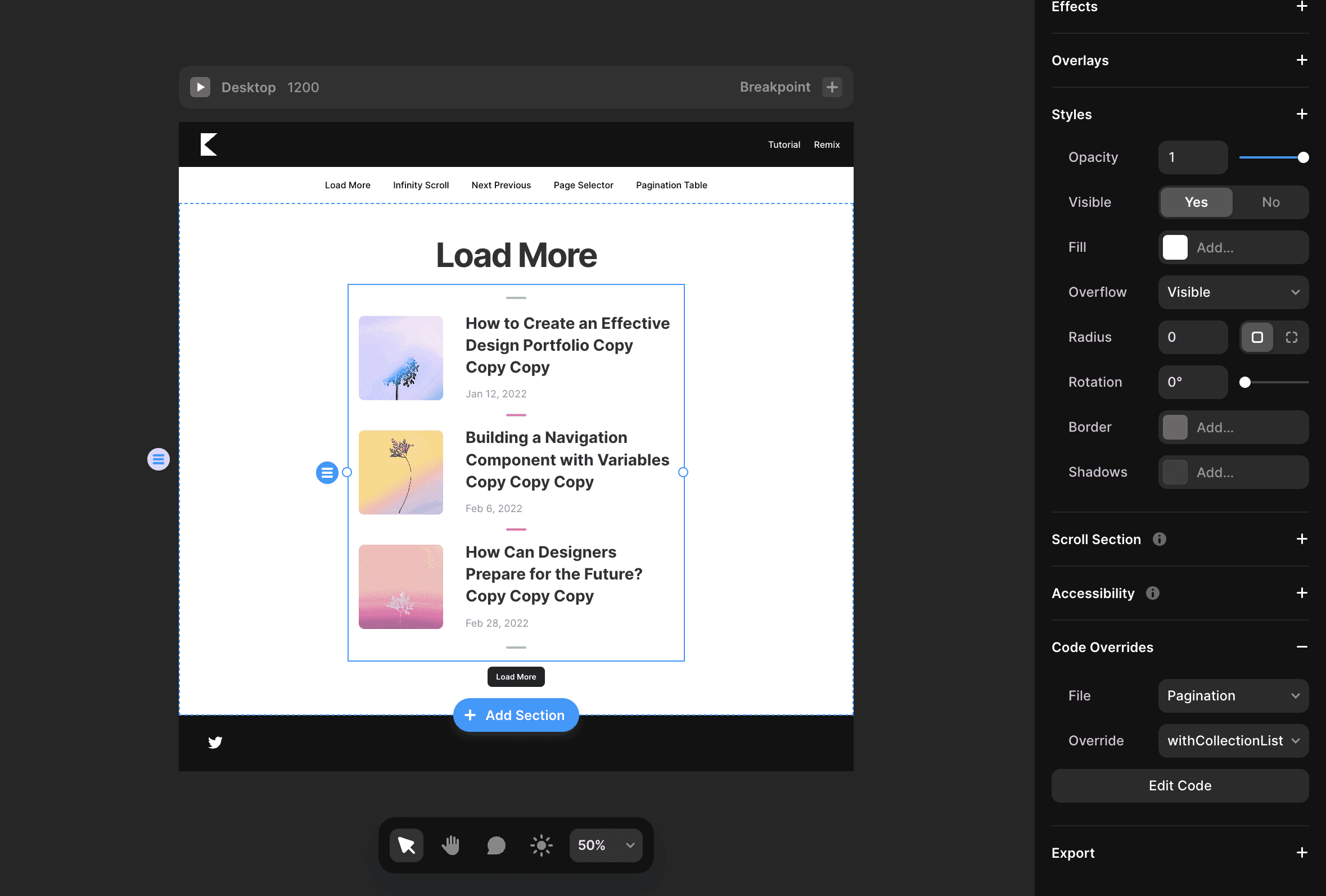
To enable pagination, start by applying a custom code override to your Collection List.
Select your Collection List on the canvas.
Apply the override function named
withCollectionList.Open the code file and set the LIMIT variable to control the number of items displayed per page.
Do not add a limit directly in the Framer Collection List settings, as this may cause bugs.
Adding Load More Pagination in Framer
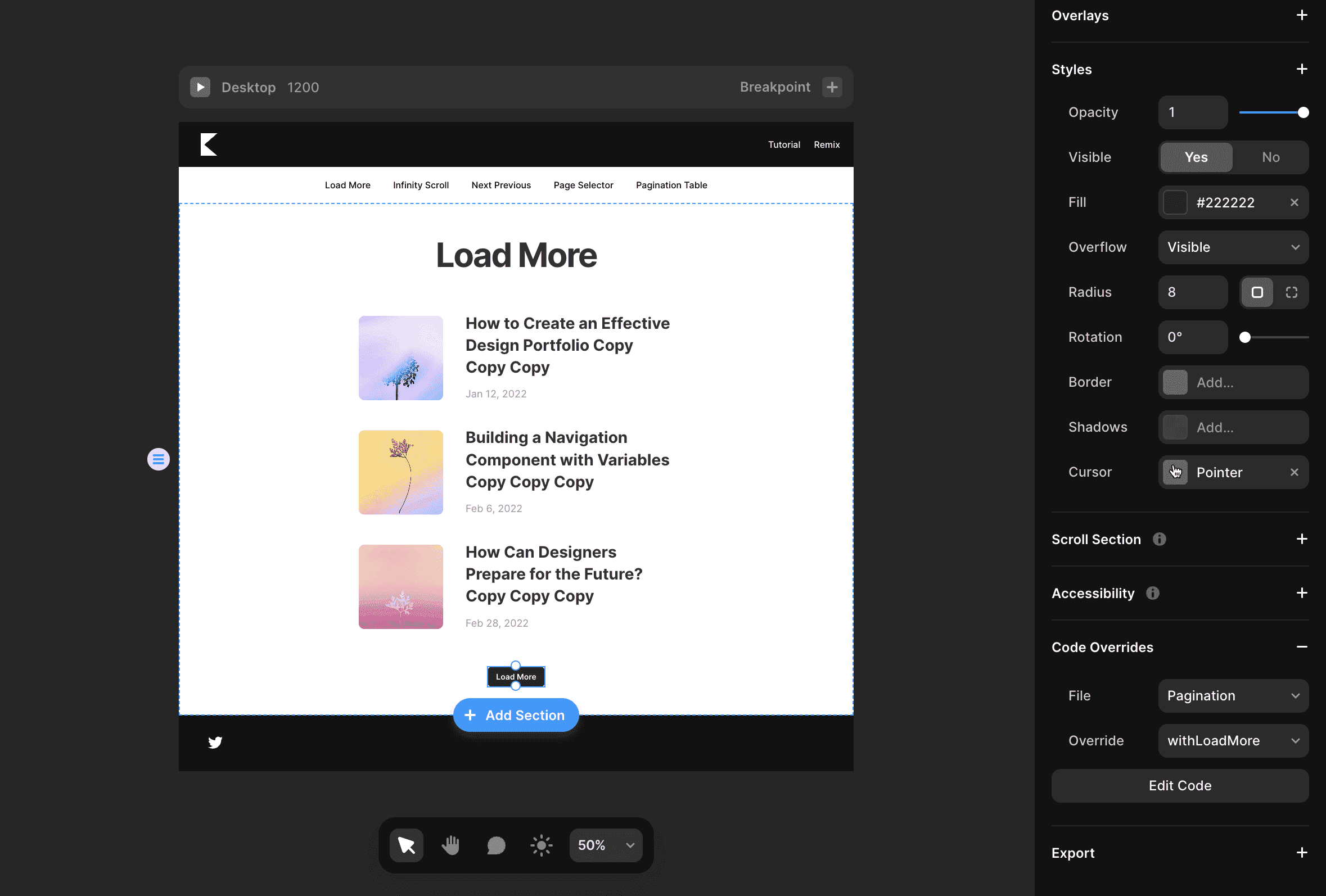
The Load More option lets users click a button to reveal additional content.
Create a Button on your page.
Apply the override function named
withLoadMoreto that button.Preview and click the button to confirm it loads more items correctly.
Make sure your CMS collection contains enough data to test pagination properly.
Adding Infinite Scroll for CMS collections in Framer
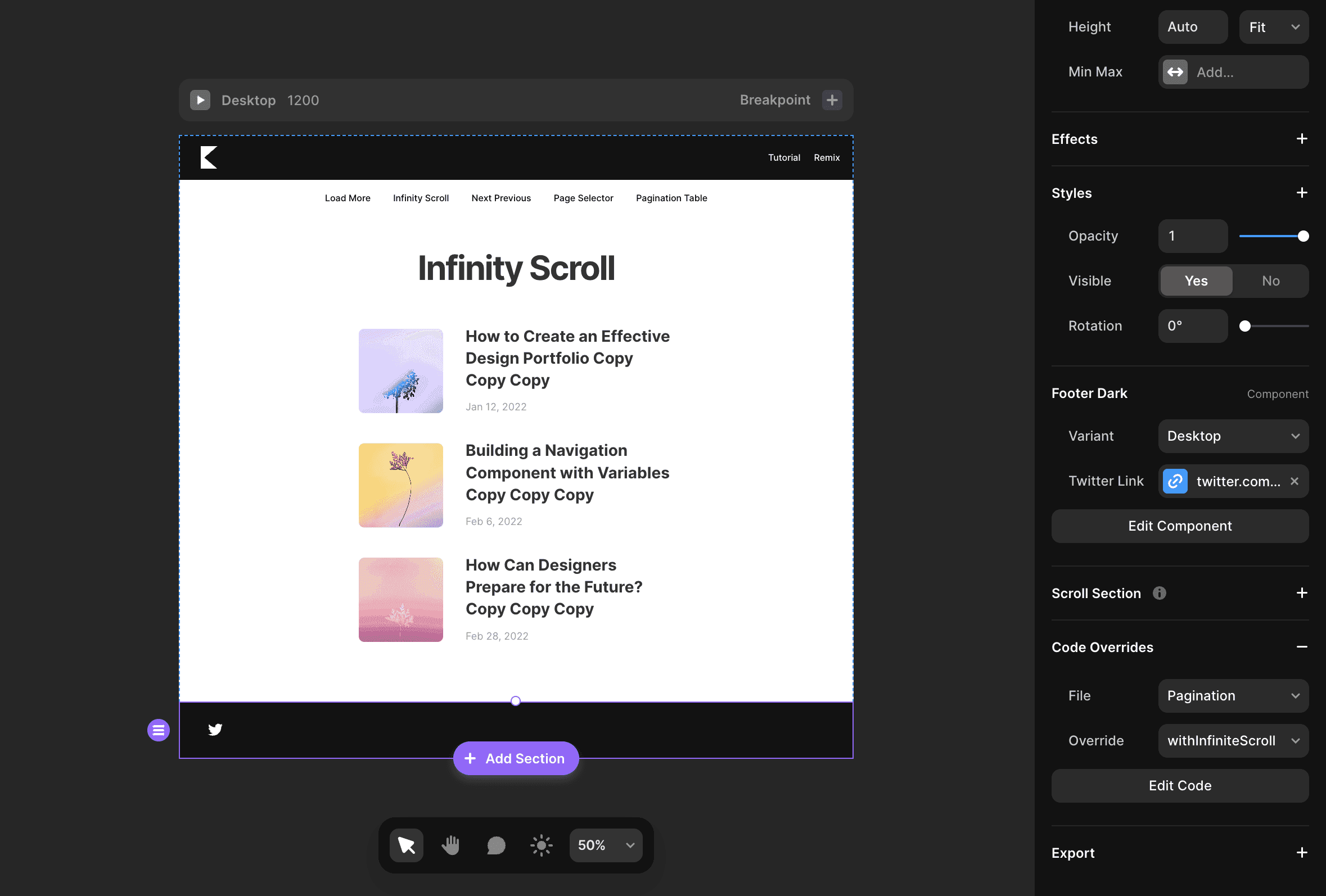
The Infinite Scroll option automatically loads more items as the user scrolls down the page.
Create a section below your Collection List (for example, a footer).
Apply the
withInfiniteScrolloverride to that section.Preview the site and scroll to the bottom: when the user approaches the footer, more items will load.
Note: Pagination may not always work perfectly inside Framer previews. Publish your site for the most accurate results.
Adding Next and Previous Pagination for CMS collections in Framer
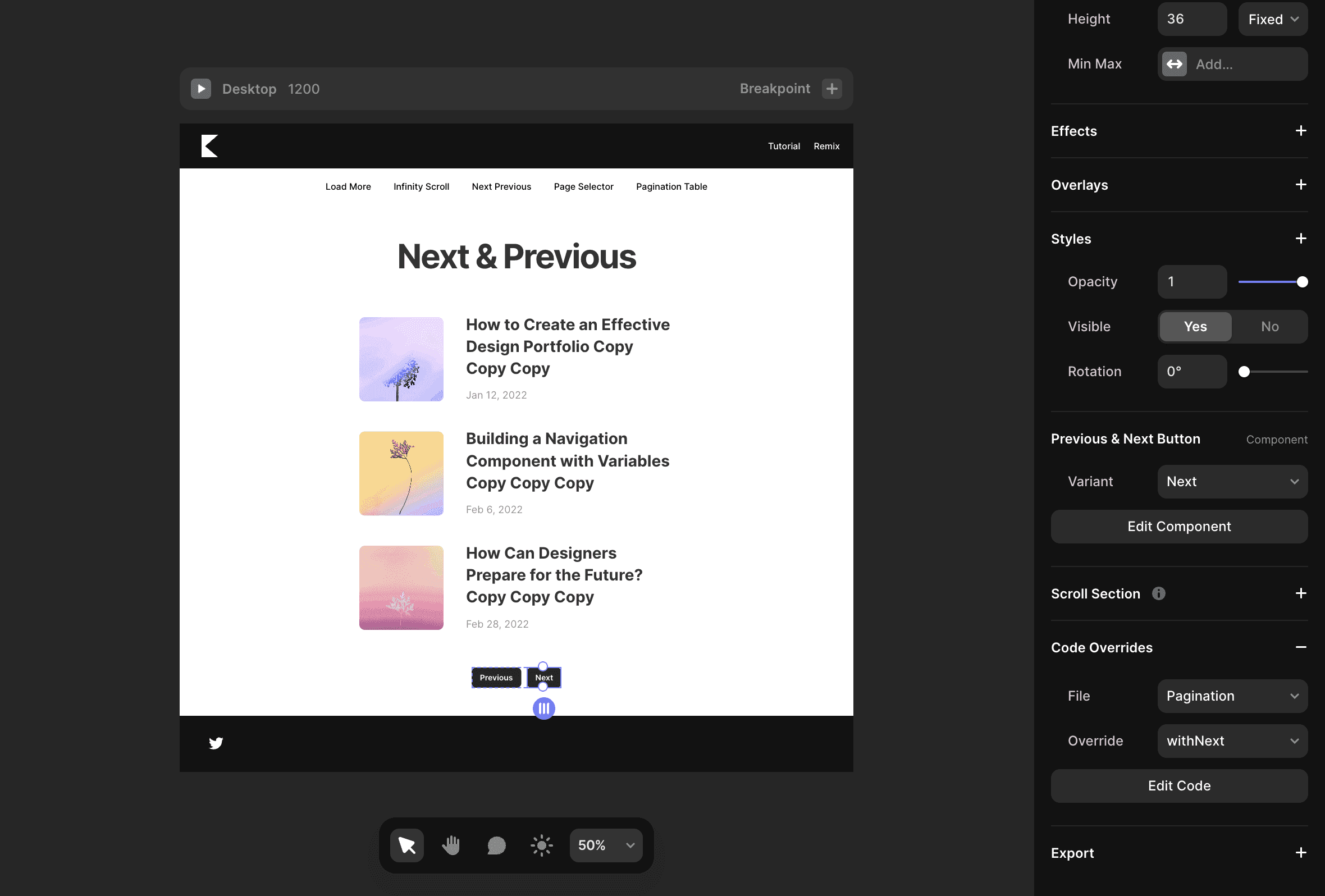
This method allows users to move between pages using Next and Previous buttons.
Create a component with four variants:
Previous (clickable)
Previous Disabled (displayed when you cannot go to the previous page)
Next (clickable)
Next Disabled (displayed when you cannot go to the Next page)
Apply the
withPreviousoverride to the Previous button and thewithNextoverride to the Next button.Preview to confirm the navigation works smoothly.
And voilá, your Next and Previous pagination is now working.
Adding a Page Selector Pagination for CMS collections in Framer
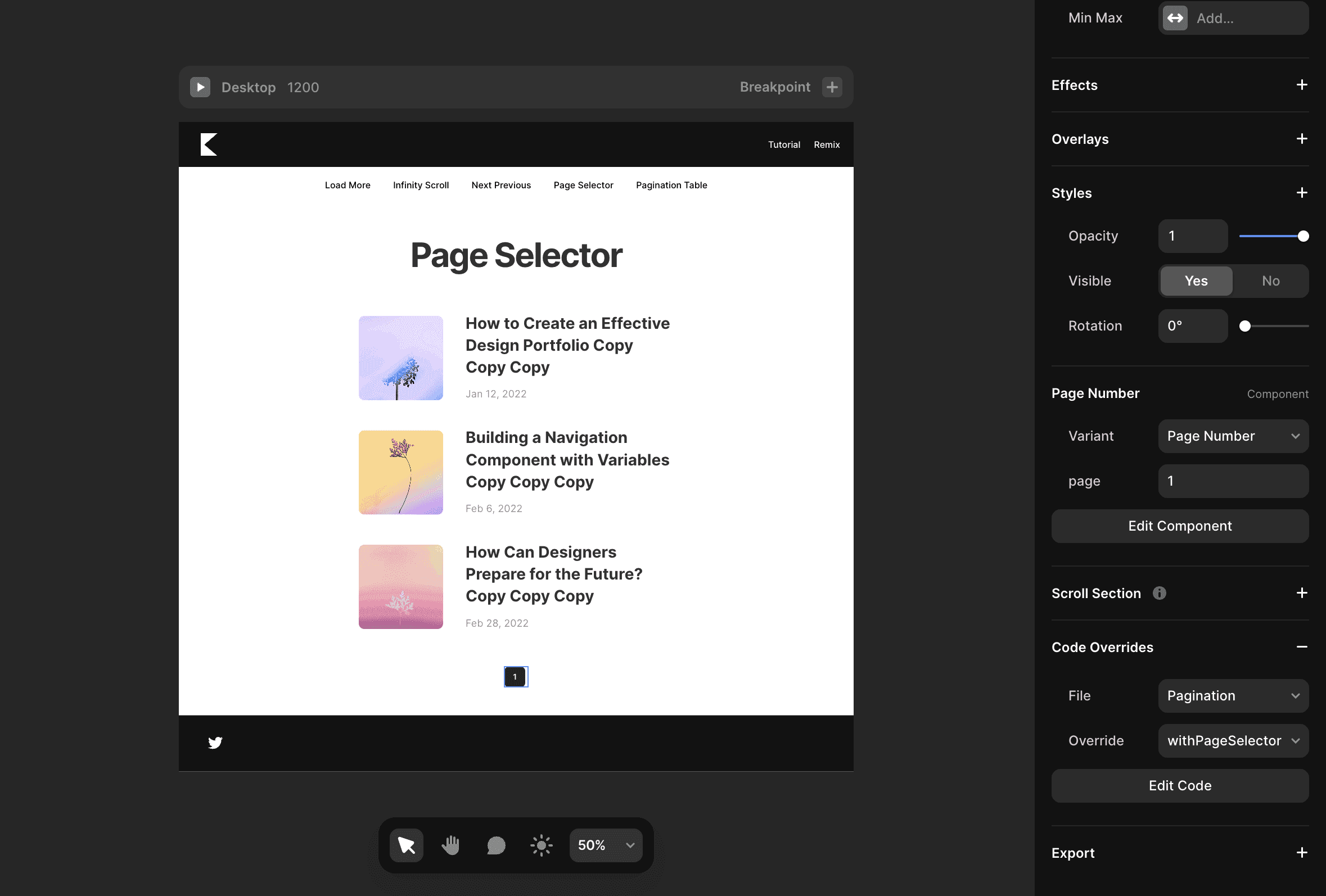
A Page Selector displays clickable page numbers. It works best when you have a small number of pages. This is how to do it:
Create a component for the page selector.
Add two variants:
Page Number (clickable)
Page Number Active (not clickable)
3. Apply the withPageSelector override to the component.
You can adjust spacing between numbers by adding padding inside the component.
Creating a Pagination Table for CMS collections in Framer
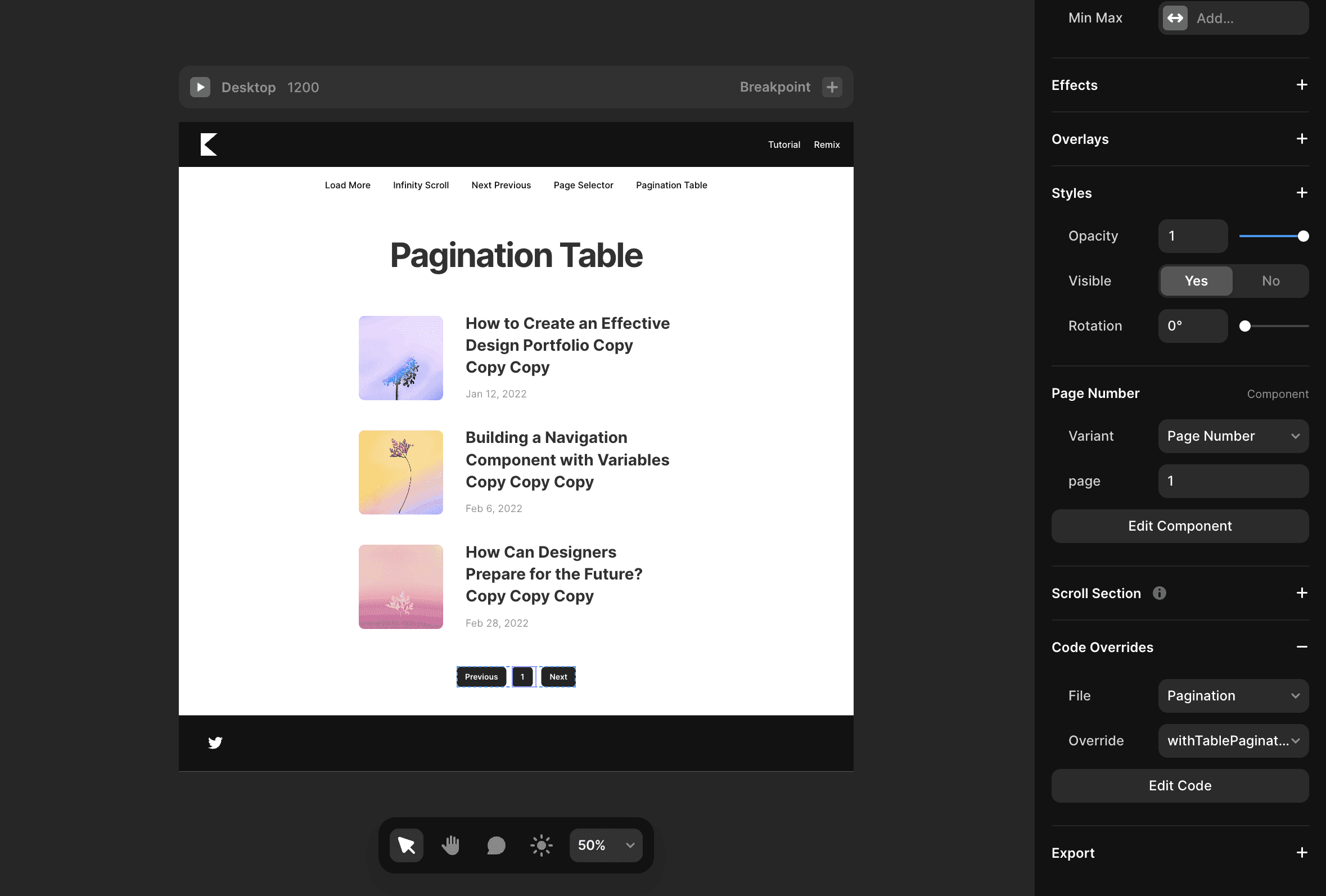
The Pagination Table method is ideal for larger collections where users need full navigation control.
Create a component with a variable named page and two variants:
Page Number
Page Number Active
Apply the
withTablePaginationoverride to the component.
Optionally, include Next and Previous buttons alongside the table for easier navigation.
The Result
You now have a complete pagination system for CMS collections in Framer. Each method from Load More, Infinite Scroll, Next and Previous, Page Selector, to Pagination Table offers different user experiences, depending on your layout and content needs.
Feel free to customize the pagination to suit your specific needs. And if you encounter any issues or want help refining your setup, feel free to reach out!
Don't forget to share this post!