Remix Project
Preview
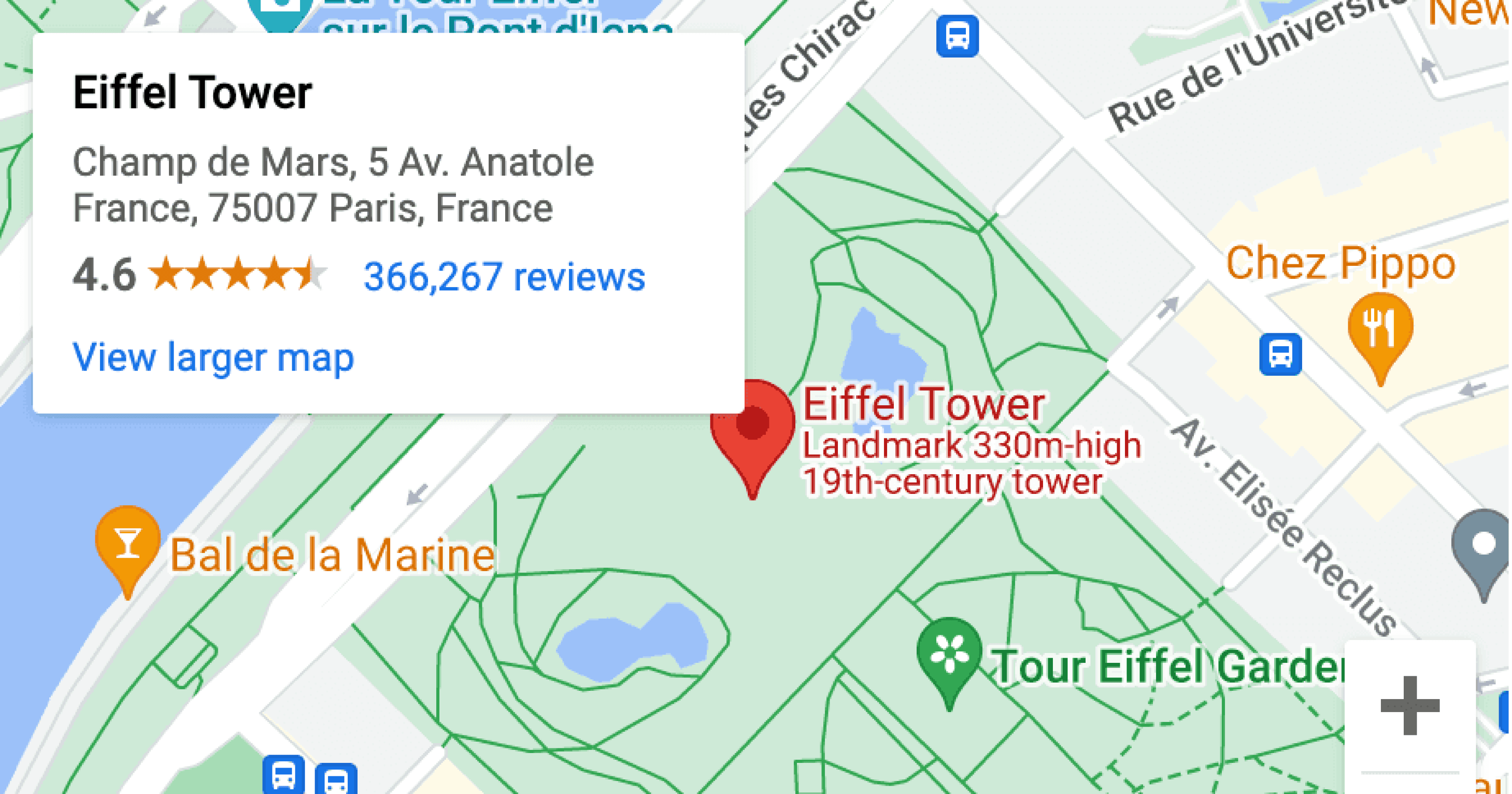

Learn how to embed Google Maps in Framer using an embed link, without needing to handle latitude and longitude coordinates. This approach makes it faster and simpler to integrate fully interactive maps into your Framer projects.
Why Use the Embed Link Method
Framer’s built in Google Maps feature requires you to enter latitude and longitude manually, which can be slow and inaccurate. Using an embed link is a much faster way to add a map. It works great for showing office locations, event venues, or stores without needing to write any code.
Step 1: Generate Your Google Maps Embed Link
The Google Maps embed link contains all the information needed to display a specific map view, including location, zoom level, and view type.
To create your embed link:
Open Google Maps and navigate to your desired location.
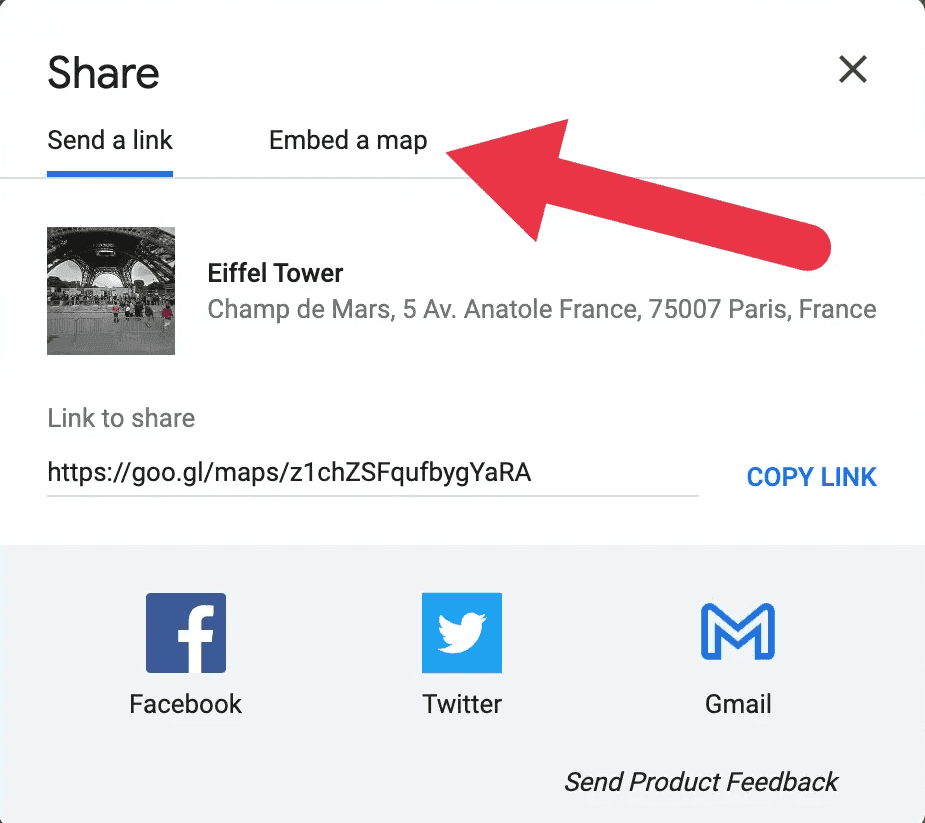
Click Share.

In the dialog box, select the Embed a map tab.
Click Copy HTML to copy the embed link.
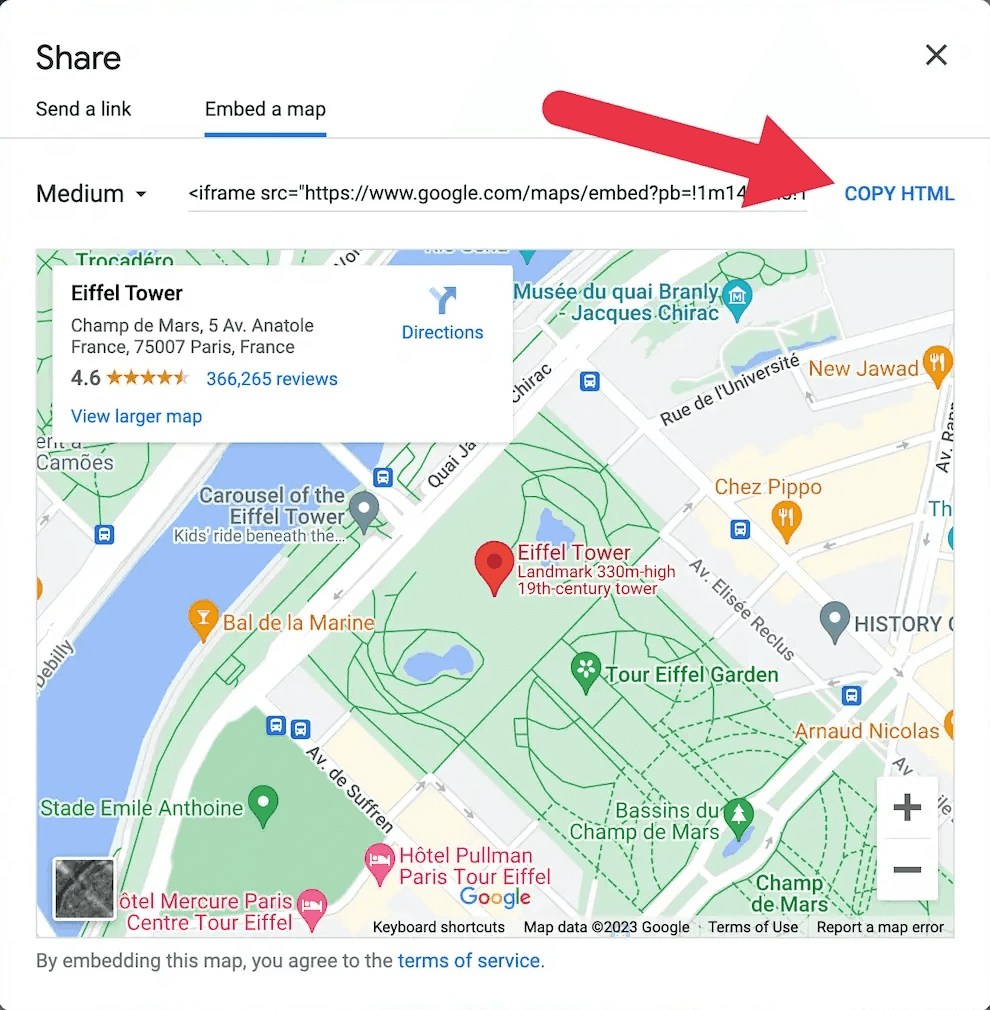
This link is all you need to embed your map in Framer.
Step 2: Add the Custom Google Maps Component in Framer
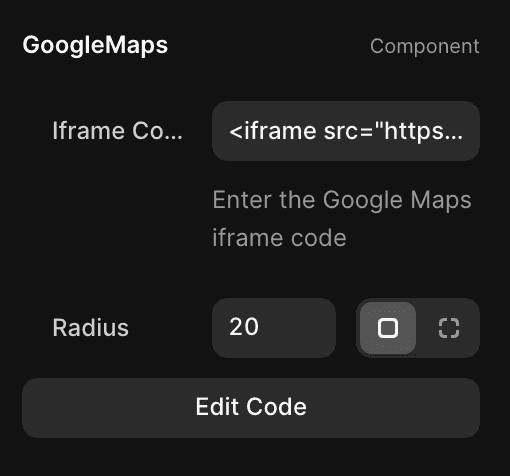
In your Framer project, add a new Custom Google Maps component to your canvas.
Paste the iframe embed code you copied from Google Maps into the component’s settings.
Adjust the component’s size and layout to fit your design.
You now have a fully functional, interactive Google Map directly in your project, with no coordinates required.
Step 3: Customize the Map Display
You can modify the embed link directly in the iframe code to adjust:
Zoom level (change
zoomvalue in the URL)Map type (roadmap, satellite, or terrain)
Dimensions (set width and height within the iframe)
This gives you control over how the map looks and behaves within your layout.
The Result
By using the embed link method, you can integrate a responsive and interactive Google Map into your Framer project without worrying about coordinates or API complexities. It’s ideal for displaying contact pages, store locators, or event locations quickly and reliably.
If you run into issues or need help customizing your map component, feel free to reach out for support.
Don't forget to share this post!