Remix Project
Preview
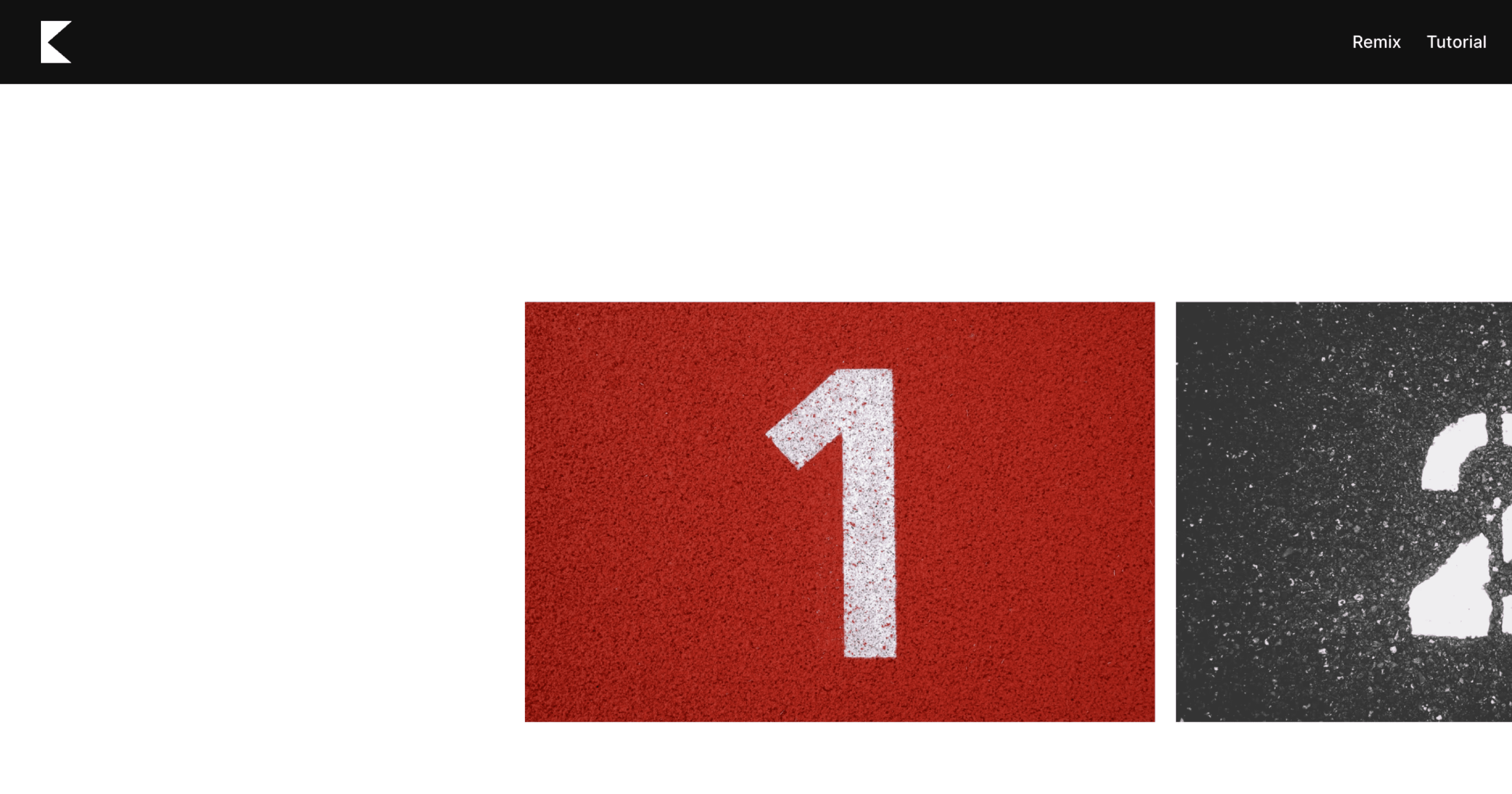

Horizontal scroll animations are a great way to present visual content that moves sideways as users scroll down the page. They work very well for product galleries, timelines, or case study sections where you want to show multiple visuals in sequence without overwhelming the layout.
This tutorial explains how to set up a smooth horizontal scroll animation in Framer using a few simple layout steps.
Step 1: Create the Image Columns
Start by adding a Columns element that will contain your images. Set the following properties:
Width: fit
Height: fit
Insert your images into this Columns container. These will be the elements that move horizontally during scroll.
Step 2: Create a Sticky Parent Container
Next, add another Columns container that will act as the sticky parent for your scrolling effect. This container keeps the horizontal section fixed while the page scrolls vertically.
Set these properties:
Position: Sticky
Width: 1fr (fills the available horizontal space)
Height: 100vh (matches the viewport height)
Make sure the layout direction is horizontal, and set the distribution to Start.
Step 3: Add a Final Parent Container
Add one more Column container. This will be the final parent that controls the full scroll animation.
Set the properties as follows:
Position: Relative
Width: 1fr (fills the horizontal space)
Height: 300vh (adjust as needed depending on how long the scroll should last)
Overflow: Visible
Also make sure the desktop container has overflow set to Visible.
Step 4: Add Scroll Section Names
To organize your animation, name the final parent container with a scroll section identifier. You can name it for example as “scroll-horizontal”.
Inside the image Columns, add a Scroll Transform Effect.
Set it up as follows:
Configure the Trigger to activate when the section is in view.
Select "#scroll-horizontal" as the target section.
Set the viewport end as the trigger point.
Step 5: Configure Animation Settings
In the From section:
Set Opacity and Scale to 1
Adjust the horizontal position (X) to center the first image (for example, X: 500)
In the To section:
Keep Opacity and Scale at 1
Adjust the horizontal position (X) to center the final image (for example, X: -2500)
You can tweak the values and transitions to match the timing and spacing you prefer.
The Result
Voilá! You now have a smooth horizontal scroll animation that reacts naturally to vertical scrolling. It gives your layout motion and depth without feeling distracting. Experiment with different image sets, layers, and animation settings to create your own unique version.
Don't forget to share this post!