Remix Project
Preview
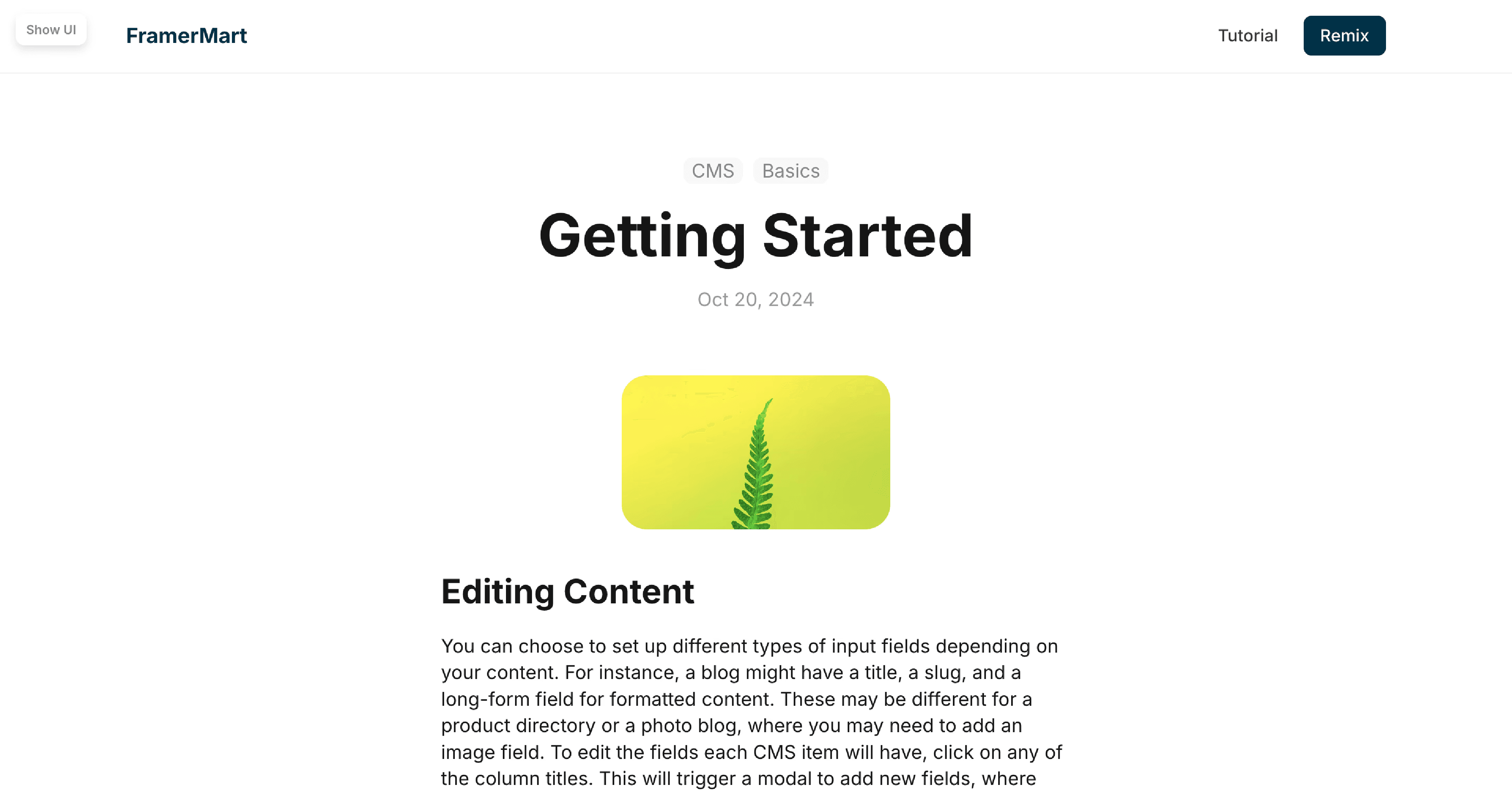

If you are using Framer’s CMS, you might have noticed that images inside CMS content cannot be centered natively. This guide shows you a quick way to fix that with a custom code override. You can track the progress of this feature by following this feature request.
Centering images improves the look and consistency of long-form content such as blogs or case studies. With a few lines of code, you can make your CMS images align perfectly in the center every time.
How to use the CMS Center Images Override
Follow these steps to set it up:
Use the remix link included with this article to access the custom code override.
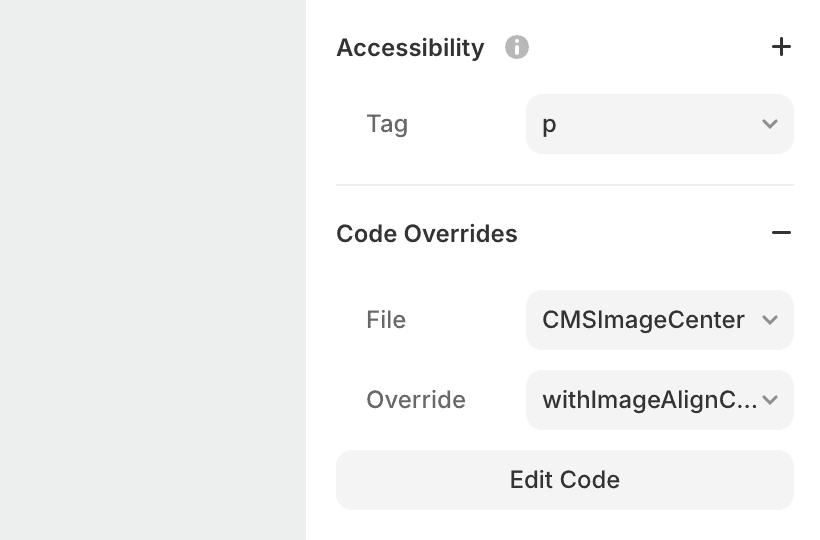
In your Framer project, create a new custom code override file named
CMSImageCenter.tsx.Copy the code from the remixed project into your new file.
The code override includes a function called
withImageAlignCenter. Apply this function to the content element of your CMS collection.Open the preview and check that your CMS images are now aligned to the center
The Result
Your images will now display neatly in the center of your CMS content, keeping your layouts cleaner and more consistent. This is a small but powerful adjustment that gives your Framer projects a more polished and professional look.
And voilà, by following these steps, you can now center your CMS Images in your Framer project!
Don't forget to share this post!