Download Framer: Desktop App for Mac and Windows
How to download the Framer desktop app for Mac (Apple silicon or Intel) and Windows, install it, and when to use the browser version instead.
 Clément Lionne
Framer has a free desktop app for Mac and Windows. It is the same editor you get in the browser, in its own window, with a few extras. This guide shows where to download it, which Mac version to pick, and how to install it.
Download Framer from framer.com
Where to Download Framer
The only official download is on Framer’s own site: framer.com/downloads. The page is titled “Desktop app for Mac and Windows” and always serves the latest version, so there is no reason to get Framer from a third-party download site.
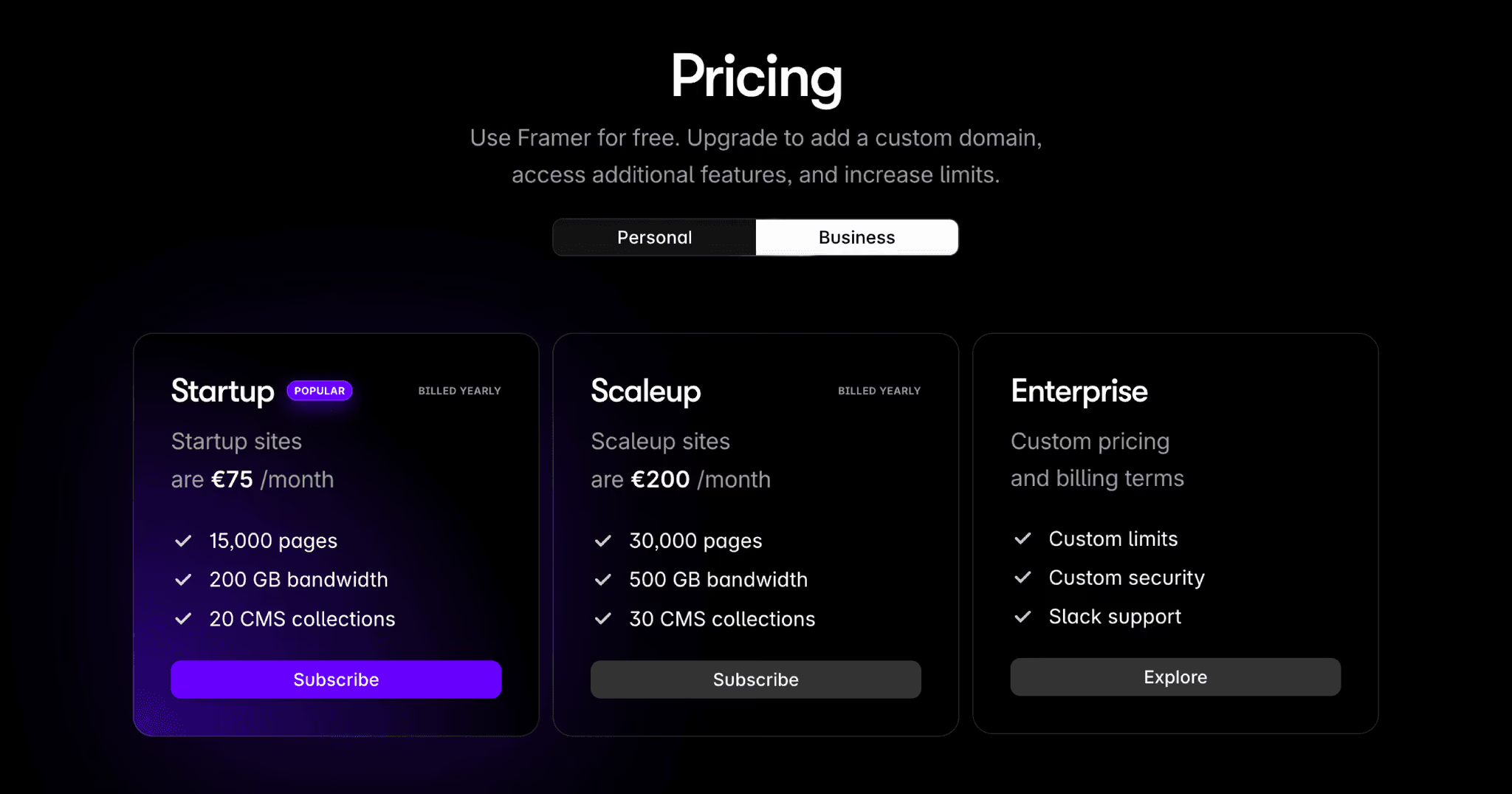
The app is free. What you pay for is your site plan, not the app. See Framer pricing for the current plans.
Download Framer for Mac
The downloads page has two Mac buttons:
| Your Mac | Button to use |
|---|---|
| Apple silicon (M1, M2, M3, M4 and later) | Download app |
| Intel processor | Download for Mac with Intel |
Not sure which one you have? Open the Apple menu, choose About This Mac, and look at the Chip (Apple silicon) or Processor (Intel) line.
Install Framer on Mac
- Download the file. It arrives as
Framer.zipin your Downloads folder. - Double-click
Framer.zipto unzip it. You get the Framer app. - Drag Framer into your Applications folder.
- Open it from Applications or Spotlight, then log in with your Framer account.
The app updates itself, so you only download it once.
Download Framer for Windows
Framer’s desktop app also runs on Windows. Open framer.com/downloads on your Windows PC, download the Windows version, run the installer, and log in with your Framer account.
If you are on another computer, the downloads page has an Email me a link form that sends you the download link for later.
Desktop App vs Browser
You don’t need the app to use Framer. Everything you build lives in your Framer account, so you can open the same projects at framer.com in Chrome, Safari, Edge or Firefox.
Framer lists three reasons to use the desktop app:
- Better performance on large projects
- Image exporting from the canvas
- The Marketplace in one click, to add components, templates and plugins
Use the app if Framer is your daily tool. Use the browser on a computer where you can’t install software, or to make a quick edit.
Is There a Framer App for iPhone, iPad or Android?
No. Framer is a desktop design tool, so there is no editor for phones or tablets. Apps called “Framer” on the App Store or Google Play are unrelated products (photo frame or window makers). Sites you publish with Framer work on every device.
FAQ
Is the Framer desktop app free?
Yes. The app and Framer’s free plan cost nothing. You only pay to publish on a custom domain or to raise your site’s limits.
Does Framer work on Windows?
Yes. Framer has a desktop app for Windows, and it also runs in any modern browser on Windows.
Which Framer download do I need for an M1, M2 or M3 Mac?
Use the main Download app button. The Download for Mac with Intel button is only for older Intel Macs.
Can I use Framer without downloading anything?
Yes. Log in at framer.com in your browser. The projects are the same in the browser and the app.
Is it safe to download Framer from other sites?
Download it from framer.com only. Third-party mirrors can be out of date and add their own installers.
Get Started with Framer
Download the app, open a project, and start building. Want a head start? Browse our free Framer resources for components, code overrides and tutorials you can remix into your site.